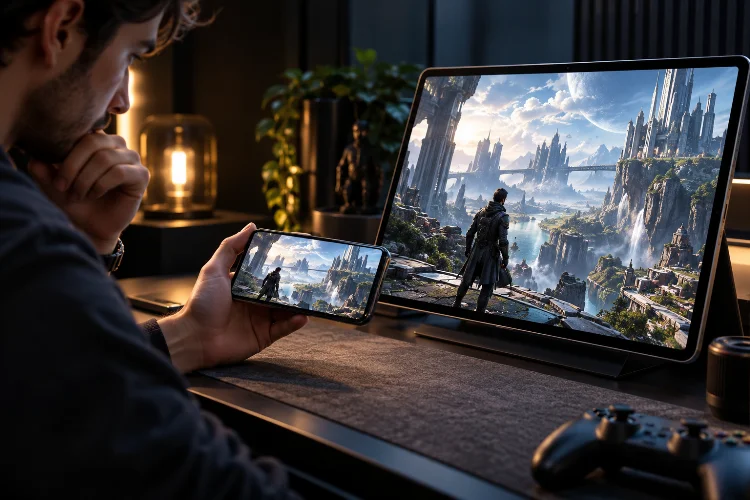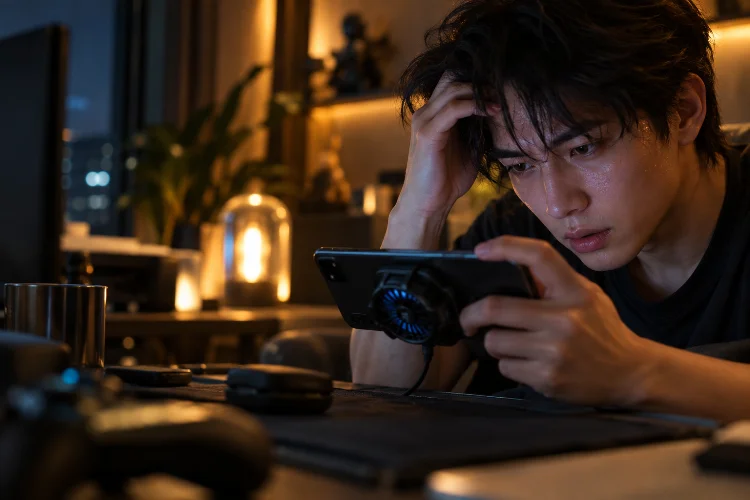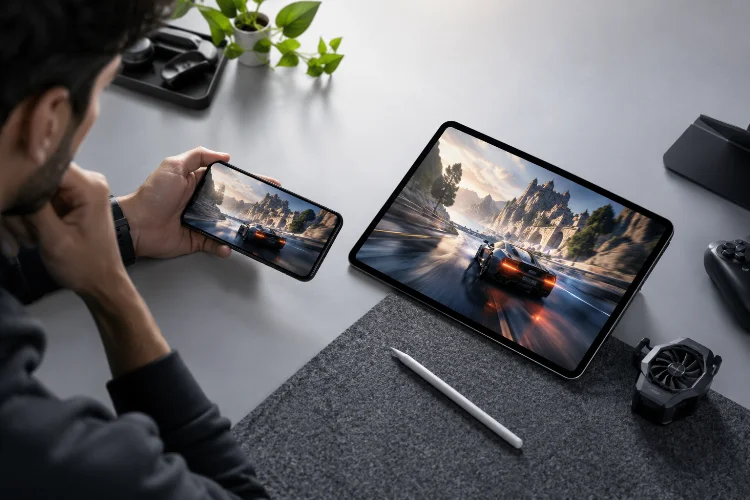
A mobile game can look perfectly sharp in screenshots and still feel frustrating once the action becomes intense. Explosions fill the screen, multiple players appear at once, the GPU workload spikes, and suddenly your smooth 60 FPS starts falling apart.
One of the most effective ways to manage that problem is resolution scaling.
Instead of forcing the graphics processor to render every frame at the display’s full native resolution, the game can render at a lower internal resolution and scale the result to fit the screen.
Done correctly, this reduces GPU workload while keeping the image surprisingly close to native quality.
That is why resolution scaling strategies for smoother mobile gameplay have become increasingly important on modern smartphones.
Android even supports game downscaling interventions that can reduce GPU load, while Apple’s MetalFX technology is specifically designed to render lower-resolution content and upscale it efficiently.
The goal is not simply to make graphics worse for more FPS. It is to spend pixels where players can actually notice them.
Understand What Resolution Scaling Actually Does
Your smartphone display might contain millions of physical pixels, but a game does not always need to render every one of them internally.
Suppose a game normally renders at 2400 × 1080. Lowering its internal render resolution to roughly 80% of that size means the GPU processes considerably fewer pixels before the image is stretched or reconstructed back to the display resolution.
The interface can still remain sharp while the 3D world is rendered more efficiently.
Android’s optimization guidance specifically recommends reducing resolution for non-UI game assets while preserving UI clarity. The documentation notes that modern mobile screens often contain more pixel detail than players can meaningfully process during gameplay.
This distinction is important.
You usually want health bars, menus, crosshairs, buttons, and text to remain crisp. Background scenery, lighting, and moving 3D objects can tolerate more scaling.
That creates performance savings without making the entire game look blurry.
Start With Moderate Scaling Instead of Going Straight to Low Resolution
Aggressive downscaling can improve performance, but it can also destroy image clarity.
A better approach is to reduce resolution gradually.
Android’s Game Mode documentation gives examples of downscale factors such as 0.9, 0.8, and 0.7.
Google describes a 90% resize as relatively subtle while warning developers that reductions around 50% can be visually significant. It recommends limiting certain intervention-based resizing to at least 70%.
For players, the exact percentage may not be exposed in the game menu. Instead, you may see presets such as Native, High, Balanced, Medium, or Performance.
Start one level below native resolution.
Play several real matches and watch both image clarity and performance. If the game becomes smoother without making enemies or environmental details difficult to identify, that setting may already be enough.
Do not lower resolution further just because the option exists.
Good optimization searches for the smallest sacrifice that produces a meaningful benefit.
Use Resolution Scaling When the GPU Is the Bottleneck
Resolution scaling works best when your phone is primarily limited by graphics processing.
Imagine the GPU needs 20 milliseconds to render a complicated frame, but your 60 FPS target gives it only about 16.7 milliseconds.
Something has to change.
Reducing render resolution decreases the number of pixels the GPU needs to shade. That can help bring frame time back under the target budget.
Google says its WindowManager backbuffer resizing intervention can reduce GPU usage by up to 30% and overall system power use by up to 10% in some circumstances, although results depend heavily on the device, workload, and environment.
However, lowering resolution will not fix every performace issue.
If a game is CPU-limited because of physics, networking, artificial intelligence, or a large number of players, rendering fewer pixels may produce only a small improvement.
A useful test is simple: lower resolution significantly for one match.
If FPS improves noticeably, you were probably dealing with substantial GPU pressure. If almost nothing changes, another bottleneck may be involved.
Combine Resolution Scaling With a Realistic FPS Target
Resolution and frame rate should be tuned together.
Trying to render at maximum resolution and maximum frame rate simultaneously is one of the easiest ways to overload a smartphone.
A better strategy is to decide what matters most.
For competitive shooters, MOBAs, and racing games, smoother motion may justify slightly lower resolution. A player could choose 90 FPS with reduced rendering instead of 60 FPS at native resolution.
For slower RPGs or cinematic games, native or near-native resolution at 30 or 60 FPS may provide a better experience.
Android’s Game Mode API explicitly supports optimization around both FPS and rendering resolution, including examples where adjusting those limits can reduce power consumption.
Think of frame rate and resolution as sharing the same performance budget.
Spending more resources on one usually leaves fewer resources for the other.
Dynamic Resolution Scaling Can Handle Difficult Scenes Better
Fixed scaling uses the same internal resolution all the time.
Dynamic resolution scaling is smarter.
With dynamic scaling, the game adjusts render resolution according to workload. During a quiet scene, it may render near native resolution. When a large battle suddenly increases GPU pressure, resolution drops temporarily to protect the target frame rate.
Once the workload decreases, image quality rises again.
This approach can be particularly effective on mobile hardware because gameplay complexity changes constantly.
Apple’s Metal technologies support workflows involving dynamic resolution, while MetalFX can upscale lower-resolution frames into higher-resolution outputs. Apple’s current Metal documentation also describes MetalFX as a way to reconstruct detail while helping maintain fluid frame rates.
From the player’s perspective, well-designed dynamic resolution can be almost invisible.
You might notice slightly softer graphics during a chaotic fight, but that is often preferable to suddenly falling from 60 FPS to 35 FPS.
Motion can also make small resolution reductions harder to notice than they would be in a static screenshot.
Upscaling Can Recover Some Lost Image Quality
Traditional resolution scaling simply renders a smaller image and stretches it.
Modern upscaling techniques can do much more.
Apple’s MetalFX framework, for example, supports both spatial and temporal upscaling. Temporal techniques can use information such as motion and previous frames to help reconstruct a higher-quality output from a lower-resolution source.
The basic idea is appealing for mobile gaming.
Render fewer pixels to save GPU time, then use smarter reconstruction to restore visual detail.
Apple’s documentation illustrates MetalFX producing a high-resolution output from lower-resolution rendering in substantially less time than directly rendering the higher-resolution image.
This does not mean upscaling is free.
Reconstruction itself requires processing, and aggressive scaling can introduce softness, shimmering, ghosting, or unstable fine detail depending on the implementation.
Still, good upscaling can make a moderate internal resolution look much better than traditional stretching.
That allows developers to trade raw pixel count for smarter image reconstruction.
Use Scaling to Create Thermal Headroom
Resolution scaling is not only about FPS.
It can also help control heat.
Rendering millions of pixels repeatedly places continuous demand on the GPU. Sustained heavy workloads increase power consumption and eventually contribute to rising device temperature.
Lowering resolution can reduce that workload.
This matters because smartphone gaming is usually limited by sustained performance rather than short benchmark peaks. A phone may run beautifully for five minutes at maximum settings but begin throttling during a longer session.
Apple recommends lowering rendering resolution, limiting frame rate, or simplifying graphical features when adapting games for power-constrained conditions.
That means a slightly softer image can sometimes produce better performance across an entire hour.
Instead of pushing the GPU constantly near its limit, you create thermal headroom for demanding battles, warmer environments, and longer sessions.
This can make gameplay more consistant even when the FPS counter initially looks unchanged.
Protect Visual Clarity in Competitive Games
Performance is useless if you cannot clearly see what is happening.
Competitive players should be especially careful with aggressive scaling.
Small enemies, distant objects, thin weapon sights, ability indicators, and environmental edges can become difficult to recognize when resolution falls too far.
That is why visiblity should establish your minimum acceptable resolution.
Start with the settings that matter most for gameplay information. Can you still identify opponents at distance? Are projectiles clear? Can you distinguish character silhouettes from the background?
If the answer becomes no, you have reduced resolution too far.
For competitive gaming, a useful priority might be:
Stable FPS → Clear Targets → Stable Frame Pacing → Resolution → Cosmetic Effects
Fancy reflections and ultra-sharp scenery are usually less important than being able to track movement during a fight.
The ideal setting keeps important gameplay information readable while reducing detail players rarely notice.
Test Scaling During the Hardest Parts of the Game
Never optimize a game by standing still in the training area.
Easy scenes tell you very little.
Test resolution settings during team fights, busy city areas, high-speed movement, weather effects, large explosions, or any scene where your device normally struggles.
Apple recommends measuring game performance across representative workloads because different scenes can stress the CPU and GPU differently.
Also test for more than a few minutes.
Your device may initially maintain excellent performance before heat begins changing the result.
Try the same demanding scenario at Native, High, and Medium resolution. Compare smoothness, heat, battery consumption, and image clarity.
Change one setting at a time.
If you adjust resolution, shadows, effects, and FPS simultaneously, it becomes difficult to know which change actually helped.
Keep the testing process seperate and controlled.
Build Different Profiles for Different Games
There is no universal resolution scale that works for every mobile game.
A fast competitive shooter may benefit greatly from reduced resolution if it enables stable 90 or 120 FPS.
A strategy game viewed from above may not need such an aggressive frame-rate target, so higher resolution could provide better text and unit clarity.
A cinematic action RPG may sit somewhere in the middle.
Consider building two basic profiles.
Your performance profile can use moderate resolution scaling, reduced effects, and a higher stable FPS target.
Your visual profile can remain near native resolution while accepting a lower frame rate.
The right choice also depends on device temperature, battery level, and session length.
Mobile graphics optimization works best when settings adapt to the situation rather than following one permanent rule.
Resolution scaling is one of the most practical ways to make demanding mobile games run more smoothly without completely sacrificing visual quality.
The key is moderation.
Start slightly below native resolution, test your hardest gameplay scenes, and watch whether frame stability actually improves. Combine scaling with a realistic FPS target and leave enough GPU headroom to handle demanding moments without immediately overheating.
Dynamic resolution and modern upscaling technologies can make this compromise even more effective by lowering rendering workload while reconstructing a sharper final image.
Do not chase the lowest resolution or the highest FPS blindly.
Open your most demanding mobile game, compare two or three resolution settings during real matches, and find the point where smoother motion becomes more noticeable than the pixels you gave up.