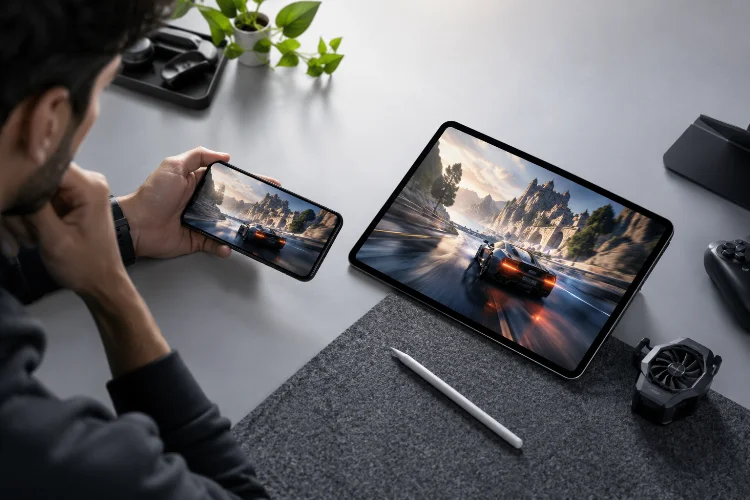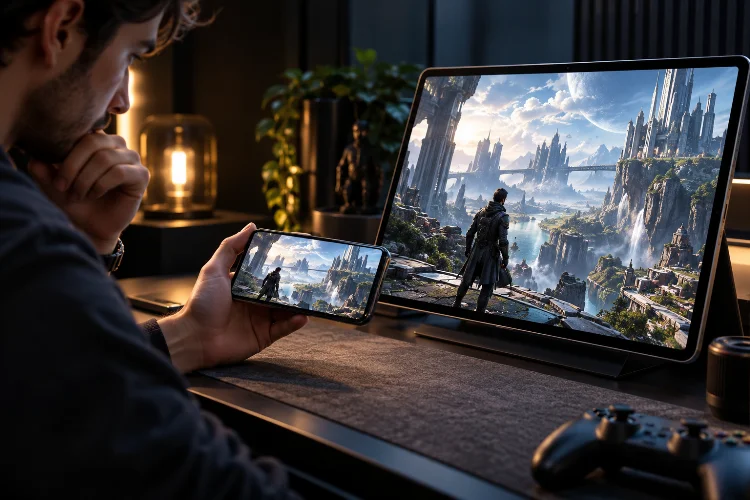
Jagged edges are easy to ignore until you start looking for them. Diagonal railings shimmer while the camera moves, character outlines look rough, and thin environmental details seem to flicker in and out.
Anti-aliasing exists to reduce those problems, but smoother edges are not free.
Every technique handles image quality differently. Some methods use additional samples during rendering, while others analyze the finished image or combine information across multiple frames.
The result can affect GPU workload, memory bandwidth, sharpness, battery consumption, and ultimately frame-rate stability.
That makes advanced anti-aliasing choices for mobile gaming performance more important than simply selecting the highest AA setting available.
Unity’s current Universal Render Pipeline, for example, supports FXAA, SMAA, TAA, and MSAA, with each method offering different resource costs and visual characteristics.
FXAA is described as the least resource-intensive option, while MSAA focuses particularly well on geometric edges.
For mobile players, the right choice depends on both the game and the hardware running it.
Understand What Anti-Aliasing Is Actually Fixing
Aliasing happens because the display has a limited number of pixels.
A diagonal object cannot always align perfectly with the pixel grid, so its edge can appear like a staircase rather than a smooth line. Motion can make the problem more obvious, especially on fences, cables, weapon edges, vegetation, and thin geometry.
Anti-aliasing techniques try to soften these artifacts.
However, not all aliasing comes from the same source. Geometric edges are one problem, while shimmering textures, bright specular highlights, and fine shader details can create different forms of instability.
This distinction explains why one AA technique can make buildings look excellent while another provides better results during camera movement.
There is no universal method that solves every visual artifact perfectly.
FXAA Is the Performance-Friendly Starting Point
Fast Approximate Anti-Aliasing, or FXAA, works after the scene has already been rendered.
Instead of taking multiple geometry samples, it examines the final image for likely edges and smooths them with a full-screen processing pass.
That makes it relatively inexpensive.
Unity describes FXAA as the least resource-intensive anti-aliasing method in URP and specifically recommends it for mobile platforms.
For players using mid-range smartphones, FXAA can therefore be a sensible starting point.
The compromise is image sharpness.
Because FXAA identifies edges from the completed image rather than understanding the original geometry, it can sometimes soften details that were not actually unwanted jagged edges.
Text, vegetation, thin objects, and fine textures may appear slightly blurrier.
Still, if your priority is a consistant frame rate rather than maximum image quality, FXAA often provides a useful performance-to-quality balance.
SMAA Can Preserve More Sharpness
Subpixel Morphological Anti-Aliasing, commonly called SMAA, also analyzes the rendered image.
Its approach is more sophisticated than FXAA.
SMAA searches for recognizable edge patterns and blends pixels based on those patterns. Unity’s documentation notes that SMAA generally produces sharper results than FXAA.
That makes SMAA interesting when you dislike the soft appearance that inexpensive post-process AA can create.
Imagine a game containing thin architecture, weapon sights, vegetation, and detailed character outlines. FXAA may smooth those edges cheaply, while SMAA can potentially preserve more apparent detail.
The trade-off is additional processing.
Whether that cost matters depends heavily on the game, resolution, GPU, and other post-processing effects already running.
On a powerful smartphone, the difference might be insignificant. On hardware already struggling to maintain its target frame time, even a relatively small additional pass can matter.
For competitive play, compare SMAA and FXAA during actual motion rather than judging them from screenshots.
MSAA Handles Geometric Edges Differently
Multisample Anti-Aliasing takes a different approach.
Instead of smoothing the finished image, MSAA stores multiple coverage samples around geometric edges and resolves them into the final pixel.
Apple explains that MSAA commonly stores two or four samples per pixel, with some hardware supporting higher sample counts.
Khronos’ Vulkan guidance similarly explains that 4x MSAA tests multiple locations inside each pixel while avoiding the full shading cost associated with traditional supersampling.
The advantage is clean geometric edge quality.
The limitation is that MSAA does not automatically solve every type of aliasing. Unity notes that it is particularly effective for triangle edges but does not directly correct shader-related problems such as texture or specular aliasing.
That means a game can use MSAA and still show shimmering materials or unstable fine textures.
MSAA solves a specific problem extremely well rather than every possible image artifact.
Why 2x and 4x MSAA Are Usually More Practical Than 8x
If more samples create smoother edges, 8x MSAA may sound automatically better than 4x.
Technically, image quality can improve.
Practically, the returns become smaller while the resource requirements continue increasing.
Khronos recommends 4x MSAA as a useful quality option when hardware and implementation allow it, while also warning against going beyond 4x without measuring the performance impact.
On smartphones, this is especially important because graphics performance shares a limited thermal and power budget.
Increasing sample count can require additional depth and color storage. Poorly implemented multisampling can also increase external memory traffic substantially.
For players, 2x or 4x MSAA is usually where experimentation should begin.
If 4x creates no meaningful FPS or thermal penalty, keep it.
If frame stability suffers, 2x—or a lighter post-process method—may provide a better overall experience than insisting on 8x simply because it looks best while the phone is cold.
Tile-Based Mobile GPUs Can Make MSAA Surprisingly Efficient
Mobile GPU architecture changes the anti-aliasing equation.
Many smartphone GPUs use tile-based rendering, where parts of the frame are processed in fast on-chip memory before being written to external memory.
This can make MSAA more effecient than people sometimes assume.
Khronos documents that multisampled data can remain inside tile memory and be resolved before final write-back, avoiding much of the expensive external-memory traffic.
Its Vulkan performance sample describes properly implemented 4x MSAA as capable of producing relatively small bandwidth overhead on tile architectures.
Apple also highlights tile-based MSAA resolve techniques that can avoid storing the full multisample texture and reduce additional compute and memory-bandwidth work.
Implementation matters enormously, however.
The same MSAA setting can perform differently between games because engines may organize render passes and resolve operations differently.
This is why advice like “MSAA always destroys mobile FPS” is too simplistic.
Sometimes it does. Sometimes modern tile-based rendering handles it remarkably well.
TAA Can Produce Stable Edges Across Motion
Temporal Anti-Aliasing, or TAA, uses information accumulated across multiple frames.
Instead of evaluating only the current image, TAA combines historical color information and motion data to reduce flickering and stabilize edges over time.
This can be extremely effective for moving scenes.
Unity notes that TAA can produce smoother edges and reduce flickering in motion, but temporal processing can also create ghosting when objects move rapidly against strongly contrasting backgrounds.
That trade-off matters in mobile gaming.
A cinematic open-world game may benefit greatly from temporal stability. Fine vegetation and distant geometry can look much calmer when the camera moves.
A fast competitive shooter may expose TAA’s weaknesses more clearly.
Quick targets, sudden camera turns, thin crosshair elements, or rapidly moving objects can potentially leave trails or appear slightly soft depending on the implementation.
For players who value maximum visiblity, image stability should be compared with motion clarity rather than judged purely by smooth edges.
Anti-Aliasing Interacts With Resolution Scaling
Anti-aliasing should never be evaluated in isolation from rendering resolution.
At high resolution, jagged edges naturally become less visible because more pixels describe the same geometry.
At lower internal resolutions, aliasing becomes easier to notice.
This means resolution scaling and AA settings should be tuned together.
For example, reducing resolution might provide enough GPU savings to enable 2x or 4x MSAA while maintaining the same frame rate. In another game, keeping higher render resolution and using lightweight FXAA could provide a sharper overall result.
There are also technical compatibility considerations.
In Unity URP, TAA cannot be combined with MSAA and is also incompatible with dynamic resolution in the configuration documented by Unity.
Players may never see those engine-level restrictions directly, but they help explain why certain games change or disable graphics options when another setting is enabled.
Do not optimize resolution and anti-aliasing seperately.
Treat them as part of the same image-quality budget.
Watch Memory Bandwidth, Heat, and Sustained FPS
Anti-aliasing performance is not only about GPU computation.
Memory traffic can matter just as much.
Khronos demonstrates how an inefficient separate MSAA resolve can create dramatically more bandwidth traffic than an in-render-pass resolve on mobile hardware. Proper tile-memory handling avoids much of this overhead.
For players, the visible symptom may simply be heat.
A demanding AA mode might run perfectly during the first match before performance declines as the device warms up.
That means a proper comparison should last longer than five minutes.
Test your chosen setting through several demanding matches. Pay attention to average FPS, sudden frame drops, phone temperature, and battery drain.
If 4x MSAA looks slightly better but causes increasingly unstable performance after thirty minutes, the visual improvement may not be worth it.
Sustained performance matters more than benchmark screenshots.
Choose Anti-Aliasing Based on the Game
Different games benefit from different approaches.
A fast competitive shooter often rewards low latency, sharp targets, and stable FPS. FXAA, SMAA, low-level MSAA, or even disabled AA at high native resolution may make sense depending on the implementation.
A racing game contains lots of moving geometry and long diagonal edges, making stronger AA useful if hardware can sustain it.
A slower RPG may tolerate the slight softness of temporal techniques in exchange for more stable foliage, distant architecture, and cinematic image quality.
Do not blindly copy another player’s configuration.
Their smartphone may have a different GPU, resolution, thermal limit, or refresh-rate target.
Test the options in your own device under the scenes that actually stress it.
The correct AA setting is the one that solves the visual problems you notice without creating larger performance problems.
Anti-aliasing is one of those graphics settings where “higher” does not automatically mean “better.”
FXAA offers low-cost smoothing but can soften the image. SMAA can preserve more sharpness, while MSAA is excellent at geometric edges and can work surprisingly well on tile-based mobile GPUs.
TAA can improve temporal stability but may introduce softness or ghosting during rapid motion. The best choice depends on resolution, game engine, device hardware, FPS target, and session length.
Open a demanding game and compare AA modes during movement rather than from static screenshots. Watch enemy clarity, shimmering, frame stability, and temperature over several matches.
Choose the lowest-cost method that gives you the image quality you actually notice. Your GPU – and probably your battery – will appreciate the difference.