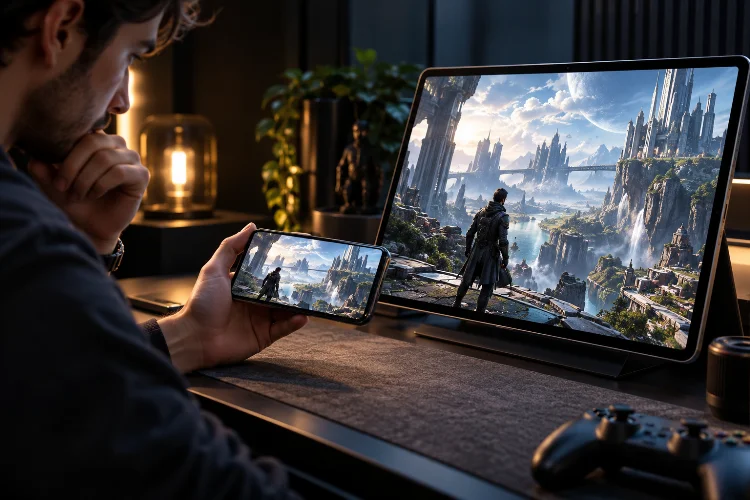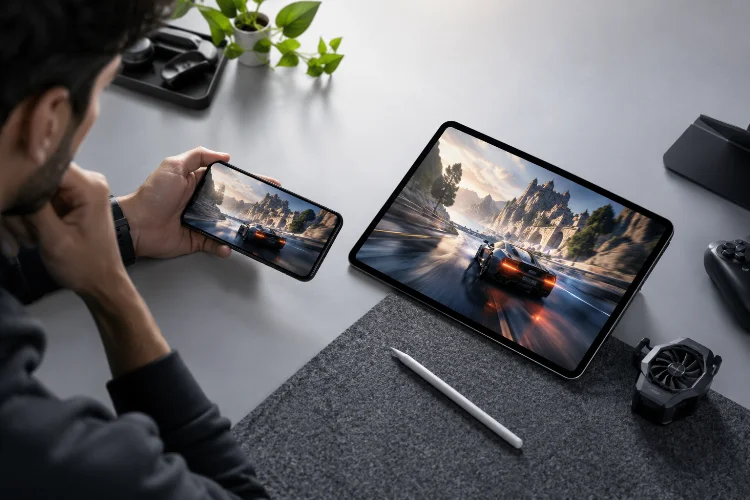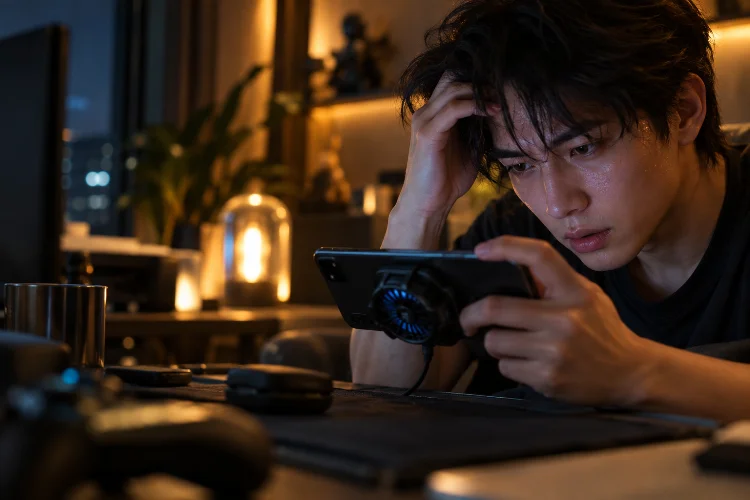
Everything feels smooth when the match begins. Your phone is cool, the frame-rate counter looks great, and even demanding visual effects run without obvious problems.
Twenty minutes later, explosions start causing stutters, camera movement feels uneven, and the game suddenly drops frames during the moments that matter most.
This is a familiar problem with graphics-heavy mobile gaming. Modern smartphones have powerful CPUs and GPUs, but they operate inside compact devices with limited cooling and battery capacity.
High rendering resolution, advanced lighting, complex effects, networking, background processes, and high-refresh displays can all increase the workload.
That makes reducing frame drops during graphics-heavy mobile game sessions more complicated than simply selecting the lowest graphics preset.
Google identifies CPU/GPU bottlenecks, overheating and thermal throttling, and mismatches between game frame rate and display refresh rate as common causes of slow frames.
The best solution is to create a workload your phone can sustain – not just briefly achieve.
Understand Why Frame Drops Happen
A frame drop occurs when the game cannot finish producing the next frame within its target time.
At 60 FPS, each frame has roughly 16.7 milliseconds available. If one frame suddenly takes 30 or 40 milliseconds, the display may need to repeat an older frame, creating a visible hitch.
Apple’s Metal performance documentation describes these irregularities as frame glitches or hitches and notes that problems can appear on either the CPU or GPU timeline. Resource streaming, shader compilation, complex rendering passes, and inconsistent frame rates can all contribute.
This explains why an FPS average can be misleading.
A game averaging 60 FPS might still feel rough if occasional frames take much longer than normal.
Consistency matters almost as much as the headline number.
Choose a Sustainable FPS Target
Running the highest FPS option available is tempting, especially on smartphones with 90Hz, 120Hz, or faster displays.
But maximum FPS creates additional CPU and GPU demand.
Android’s documentation warns that requesting a higher refresh rate when the game cannot actually reach that frame rate can consume unnecessary power and increase device temperature. The operating system may also restrict higher refresh rates because of battery or thermal conditions.
For example, imagine your phone reaches 120 FPS when cold but falls toward 70 FPS after fifteen minutes.
A locked 90 FPS target could provide a smoother experience over the entire session because it creates additional performance and thermal headroom.
The same applies to mid-range phones.
Stable 60 FPS will usually feel better than an unstable mode jumping continuously between 50 and 90 FPS.
Select the highest rate your hardware can consistantly maintain during demanding scenes.
Reduce Resolution Before Destroying Visual Quality
Resolution is one of the most powerful graphics settings for controlling GPU workload.
More pixels require more rendering work every frame.
Android’s Game Mode documentation reports that backbuffer resizing can reduce GPU load by up to 30% and overall system power use by up to 10% under some conditions, although actual results depend on the device and workload.
That makes moderate resolution scaling useful when frame drops mainly come from GPU pressure.
Instead of switching every graphics option from Ultra to Low, try reducing rendering resolution one level first.
A game running internally at slightly below native resolution may look almost identical during fast movement while giving the GPU considerably more room to handle explosions, particles, and complex environments.
A real Android developer case study provides an interesting example. Netmarble found that resolution scaling had a particularly significant effect on GPU load and thermal output compared with several other graphics settings.
For many demanding games, resolution is therefore a smart first adjustment.
Lower Effects That Become Expensive During Combat
Some graphics settings create their biggest workload exactly when gameplay becomes chaotic.
Particle effects are a good example.
A quiet section of a game might contain only a few characters and simple scenery. During a team fight, the screen can suddenly fill with explosions, smoke, abilities, lighting effects, and multiple animated characters.
That temporary load can push the GPU beyond its frame-time budget.
Try reducing effects quality, dynamic shadows, reflections, ambient occlusion, volumetric lighting, or similar options before sacrificing features that help gameplay visibility.
Keep character detail, important ability indicators, and interface elements easy to see.
Competitive optimization should not make enemies harder to recognise.
The goal is to remove expensive visual decoration while keeping important information clear.
Manage Heat Before Thermal Throttling Starts
One of the biggest causes of frame drops during long sessions is not the game’s opening workload.
It is accumulated heat.
Google explains that heavy CPU and GPU utilization generates heat and that devices can downclock those processors when temperatures become too high. This thermal throttling directly affects game performance.
That explains a common pattern:
The first match runs perfectly.
The second becomes slightly less stable.
By the third match, frame drops appear during major fights.
Your settings may simply be too demanding for sustained performance.
Reduce GPU-heavy features before the phone becomes extremely hot. Playing in a cooler environment and avoiding unnecessary workloads can also help the device maintain performance longer.
Netmarble reported that prolonged play increased device temperatures and produced inconsistent frame rates before it implemented more dynamic thermal-management techniques.
Think about performance across an hour, not the first five minutes.
Pay Attention to Frame Pacing
Raw FPS is only one part of smooth gameplay.
The timing between frames also matters.
Android defines frame pacing as synchronizing a game’s rendering loop with the operating system and display hardware. Its Swappy Frame Pacing library is designed to reduce problems caused by irregular delivery and late frames.
Consider two games averaging 60 FPS.
One consistently produces a new frame around every 16.7 milliseconds. The other produces several fast frames, followed by a 40-millisecond delay, then speeds up again.
The first one will normally feel much smoother.
This is why micro-stutters deserve attention even when an FPS counter still shows a respectable average.
Camera rotations, entering new areas, large fights, and sudden visual effects are particularly useful moments for spotting poor frame pacing.
Smooth delivery beats impressive but unstable numbers.
Match Refresh Rate With Real Game Performance
A 120Hz display does not guarantee 120 FPS gameplay.
The screen’s refresh rate describes how frequently it can update, while actual game performance depends on how quickly the CPU and GPU generate frames.
Google recommends matching display refresh rate as closely as possible to the game’s actual target frame rate.
If your game consistently runs around 60 FPS, forcing a 120Hz gaming mode may increase energy consumption without doubling the amount of unique visual information being produced.
Android’s frame-pacing tools can work with different refresh-rate combinations. For instance, supported hardware may allow a struggling 60 FPS game to use 45 FPS on a 90Hz display instead of falling all the way to 30 FPS.
For players, the practical lesson is straightforward.
Do not automatically use the highest refresh-rate option. Compare 60, 90, and 120 FPS modes where available and determine which remains stable during the hardest gameplay.
Reduce Unnecessary Background Work
Your game is not the only software using the phone.
Background synchronization, downloads, screen recording, messaging overlays, browser activity, and other apps can compete for processor time, memory, networking, and power.
Closing unnecessary heavy applications before a demanding session can reduce unpredictable interruptions.
However, avoid treating aggressive “RAM cleaner” apps as a magical performance solution. Modern mobile operating systems already manage memory dynamically, and repeatedly forcing apps to restart can sometimes create additional work rather than meaningful gains.
Focus instead on obvious competing workloads.
Pause large downloads. Avoid unnecessary video processing or screen recording when performance matters. Keep enough free storage for the operating system and game to work comfortably.
Small improvements may not dramatically increase peak FPS, but reducing competing activity can help make performance more predicatable.
Leave Performance Headroom
A useful gaming configuration should not push your phone to 100% capability during ordinary gameplay.
You need spare capacity for difficult scenes.
Imagine normal gameplay consumes almost the entire available GPU budget. When an explosion, complex shader, or large battle appears, there is nowhere for the extra workload to go.
Frames get delayed.
Apple recommends developing graphics configurations that work across different conditions and monitoring frame time, memory usage, rendering options, and performance throughout the entire game rather than testing only a single scene.
Players can follow the same logic.
If High graphics stays near 60 FPS while Medium comfortably exceeds what you need, Medium may actually be the better long-session setting.
That unused capacity is not wasted.
It is insurance against frame drops.
Test Settings During Real Gaming Sessions
Do not optimize graphics while standing still in an empty training room.
Test the hardest realistic workload.
Play a crowded multiplayer match. Enter the busiest part of the map. Trigger complex abilities. Drive through detailed environments at high speed.
Then continue long enough for the phone to become warm.
This reveals whether the configuration is genuinely sustainable.
Change one major setting at a time so you know what produces the improvement. Start with resolution, effects, shadows, and frame-rate limits.
After each adjustment, evaluate smoothness, temperature, image clarity, and battery use.
Your final settings may look less impressive on a screenshot, but if they remain stable during the hardest moments, they are doing their job.
Reducing frame drops on demanding mobile games is less about maximizing hardware and more about managing it intelligently.
Choose an FPS target your phone can sustain, reduce GPU-heavy settings, use moderate resolution scaling, keep refresh rate aligned with real game performance, and leave enough headroom for complicated scenes. Most importantly, watch how performance changes as device temperature rises.
A phone that reaches an impressive frame rate for three minutes is less useful than one that remains smooth throughout an entire session.
Open your most demanding game and test one setting at a time during real matches. Start with resolution and effects, then compare sustained FPS after twenty or thirty minutes.
The smoothest configuration may not be Ultra – but during the final fight, you probably will not miss the extra shadows.