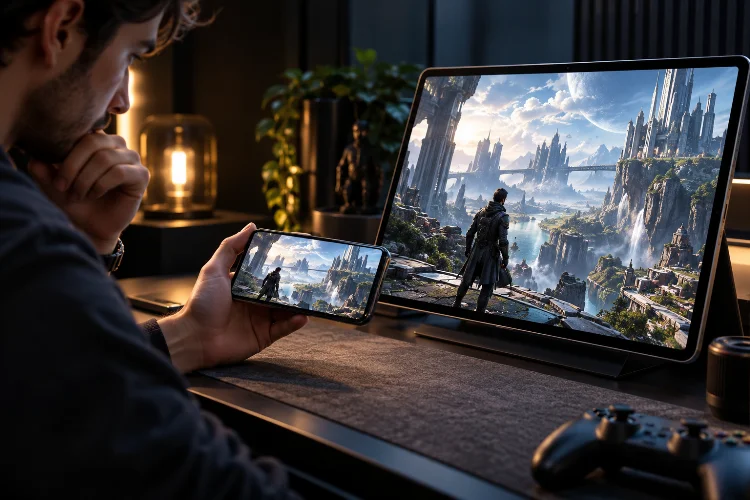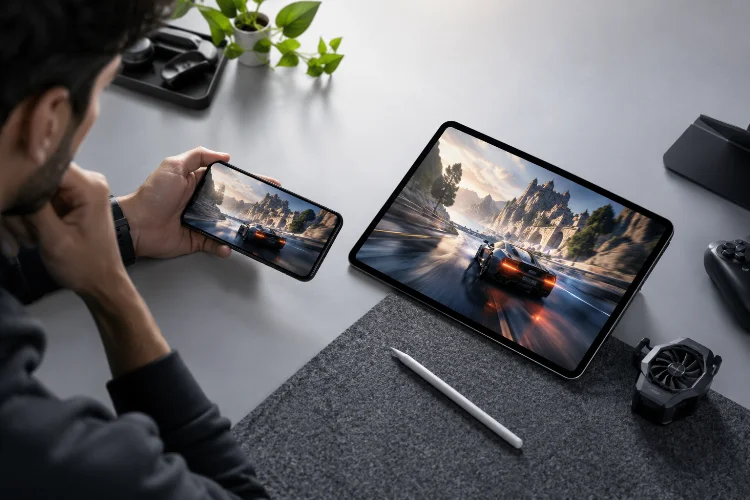
Modern smartphones can deliver graphics that would have looked impossible on a handheld device not long ago. High-resolution displays, advanced lighting, detailed textures, and refresh rates reaching 90Hz or 120Hz have made mobile games dramatically smoother and more attractive.
The problem is that all those features compete for the same limited resources.
Push visual quality too far and the GPU may struggle, causing dropped frames and extra heat. Chase the highest possible frame rate and you may need to sacrifice resolution, effects, battery life, or graphical detail.
That makes balancing frame rate and visual quality on modern smartphones less about choosing “High” or “Low” settings and more about understanding what your device can sustain.
Google notes that higher display refresh rates can improve smoothness but also increase power consumption, while Apple recommends selecting graphics settings according to device capability, frame-time targets, and image-quality priorities.
The best gaming setup is usually not the prettiest or fastest one. It is the one that stays smooth throughout the entire session.
Understand What Frame Rate Actually Changes
Frame rate measures how many complete images a game produces each second.
At 30 FPS, each frame gets roughly 33.3 milliseconds to render. At 60 FPS, that budget falls to about 16.7 milliseconds. Higher targets such as 120 FPS leave even less time for the processor and GPU to complete their work.
Apple’s graphics documentation specifically highlights these frame-time budgets and recommends measuring CPU and GPU performance against them to avoid missed frames and hitching.
Higher frame rates can make camera movement, aiming, scrolling, and animations feel smoother. They can also improve perceived responsivness in fast games.
But there is little value in selecting 120 FPS if your phone can only maintain it occasionally.
A stable 60 FPS often feels better than performance jumping continuously between 70 and 110 FPS.
Match Frame Rate to Your Smartphone Display
The display itself creates another limit.
A 60Hz screen refreshes up to 60 times per second. Modern smartphones increasingly support 90Hz or 120Hz, allowing compatible games to deliver smoother motion.
Google recommends matching the display refresh rate closely to the game’s target frame rate. Running a 120Hz panel while a game renders only 60 FPS can waste power because the screen refreshes more frequently without receiving additional unique frames.
Android’s Frame Pacing library can work with several useful combinations, including 60, 90, 120, 45, 40, and 30 FPS depending on the supported display modes.
Apple’s ProMotion technology similarly supports variable refresh behavior on compatible devices, reaching up to 120Hz.
Apple recommends requesting high refresh rates selectively because an application that cannot maintain the requested rate may deliver worse visual pacing than one running steadily at a lower target.
So do not automatically select the largest number available.
Choose the highest rate your game and device can maintain reliably.
Decide Which Visual Settings Are Worth Keeping
Not every graphics option contributes equally to the experience.
Texture quality often improves the appearance of character models, terrain, and environmental surfaces. Shadows add depth. Reflections make scenes more realistic, while particle effects make explosions and abilities more dramatic.
The problem appears when all these features are enabled simultaneously.
Complex shadows, lighting, shaders, geometry, and post-processing can increase GPU workload substantially. Apple recommends identifying which settings prioritize performance and which prioritize image quality, then creating configurations appropriate for different hardware capabilities.
For gaming, protect settings that improve visiblity first.
Clear character models, readable environments, and important effects usually matter more than perfect reflections or cinematic shadows.
Try lowering expensive cosmetic features before aggressively reducing everything else.
You may discover that Medium graphics looks almost identical during actual gameplay while providing much better performance headroom.
Use Resolution as a Powerful Performance Lever
Resolution has a direct impact on how much work the graphics processor performs.
Higher rendering resolutions require the GPU to process more pixels every frame. Lowering internal render resolution can therefore provide a significant performance improvement, especially when a game is GPU-limited.
Apple explicitly identifies lowering rendering resolution as one way games can reduce resource use and adapt to portable-device power constraints.
This does not necessarily mean making the game blurry.
Modern smartphone displays have extremely high pixel density, so modest resolution scaling can sometimes be difficult to notice during fast gameplay.
A useful strategy is to keep important texture detail reasonably high while lowering render resolution one step.
Compare the result during movement rather than staring at a static screenshot.
If you gain noticeably smoother performance without losing important visual information, you have probably found a better balance.
Watch Frame Pacing, Not Just the FPS Counter
Average FPS can be misleading.
Imagine two phones both report 60 FPS. One delivers frames at nearly identical intervals, while the other frequently produces short frames followed by long delays.
The first device will generally feel smoother.
This is called frame pacing.
Google’s Frame Pacing library exists specifically to help games synchronize frame delivery with supported display refresh modes and avoid uneven presentation timing.
Apple also emphasizes that inconsistent frame rates, hitches, and delayed frames can produce visible glitches even when overall performance seems reasonably high. Its performance tools specifically measure frame interval and GPU time to detect these issues.
This is why chasing maximum FPS is not always the smartest approach.
A consistant 60 FPS with smooth pacing can look and feel significantly better than an unstable higher target.
Pay attention to sudden stutters during large fights, quick camera movements, explosions, or transitions into new areas.
Those moments reveal more than the average number.
Remember That Higher FPS Creates More Heat
Smartphones have impressive processors, but they also have limited cooling compared with PCs or consoles.
Running a GPU and CPU aggressively generates heat.
Google notes that higher refresh rates require additional power and can produce more heat. Android may even override requested refresh rates depending on factors such as battery level or device temperature.
Android’s Dynamic Performance Framework is specifically designed around sustainable performance, allowing games to respond to CPU, GPU, power, and thermal conditions before overheating becomes severe.
This matters because performance during minute two may look completely different from minute thirty.
A demanding setting might initially deliver 120 FPS before the device becomes hot and reduces processor performance.
For longer gaming sessions, lowering graphics slightly can sometimes preserve a higher average frame rate because the phone remains within a more sustainable tempereture range.
Test settings over full matches, not just in the menu or training room.
Consider Battery Life as Part of Graphics Quality
Maximum performance always has a cost.
A high-refresh display, heavy GPU workload, bright screen, wireless networking, and sustained CPU activity can consume battery quickly.
Google specifically recommends matching display refresh rate to actual game frame rate because unnecessary refreshes consume additional energy.
Apple similarly suggests that games adapt during low-power conditions by reducing rendering resolution, limiting frame rate, or using less detailed models, textures, and shaders.
This creates an important distinction between short and long sessions.
For a twenty-minute competitive match, you may prefer 90 or 120 FPS with reduced graphics.
For a two-hour RPG session, 60 FPS with higher image quality may offer a better combination of battery life, visuals, and comfort.
There is no universal perfect setting.
Your priorities matter.
Build Separate Performance and Quality Profiles
One of the easiest ways to handle this trade-off is to create two gaming profiles.
Your performance profile should prioritize frame rate, frame pacing, low input delay, and sustainable thermals. Use it for shooters, MOBAs, racing games, and other titles where fast movement matters.
Your quality profile can increase resolution, shadows, textures, lighting, and effects while using a lower FPS target. It works well for story-focused games, exploration titles, and slower experiences where visual atmosphere matters more.
Android itself supports similar concepts through Game Mode. Its Performance mode can prioritize lower-latency frame rates while potentially reducing fidelity and battery life, while battery-oriented modes can trade some performance or visual quality for longer play sessions.
This approach is much better than forcing one configuration onto every game.
Different genres need seperate priorities.
Find the Smartphone’s Sustainable Sweet Spot
The best settings are usually slightly below your device’s maximum capability.
Why?
Because leaving some performance headroom protects against demanding scenes, background activity, rising device temperature, and temporary workload spikes.
If your phone barely maintains 120 FPS under ideal conditions, a 90 FPS target might feel more stable after thirty minutes. Similarly, Medium-High graphics may provide almost the same perceived image quality as Ultra while consuming substantially fewer resources.
Test one setting at a time.
Start with your preferred frame-rate target, then adjust resolution, shadows, effects, and texture detail until the game remains smooth during its hardest scenes.
Your goal is not to win a benchmark.
It is to find a configuration you can actually enjoy for an entire gaming session.
Balancing mobile gaming graphics is ultimately about understanding trade-offs rather than maximizing every setting.
High frame rates improve motion clarity and responsiveness, while higher visual settings provide sharper textures, richer lighting, and more immersive environments.
Push either side too aggressively, however, and heat, battery drain, stuttering, or unstable performance can reduce the overall experience.
Start with a sustainable FPS target that matches your display. Keep visual features that genuinely improve clarity, reduce expensive effects that add little during gameplay, and watch how performance changes as your phone becomes warm.
Most importantly, test real gaming sessions instead of relying only on specification sheets.
Experiment with performance and quality profiles this week. Your smartphone’s best setting may be one or two steps below maximum – and considerably smoother because of it.